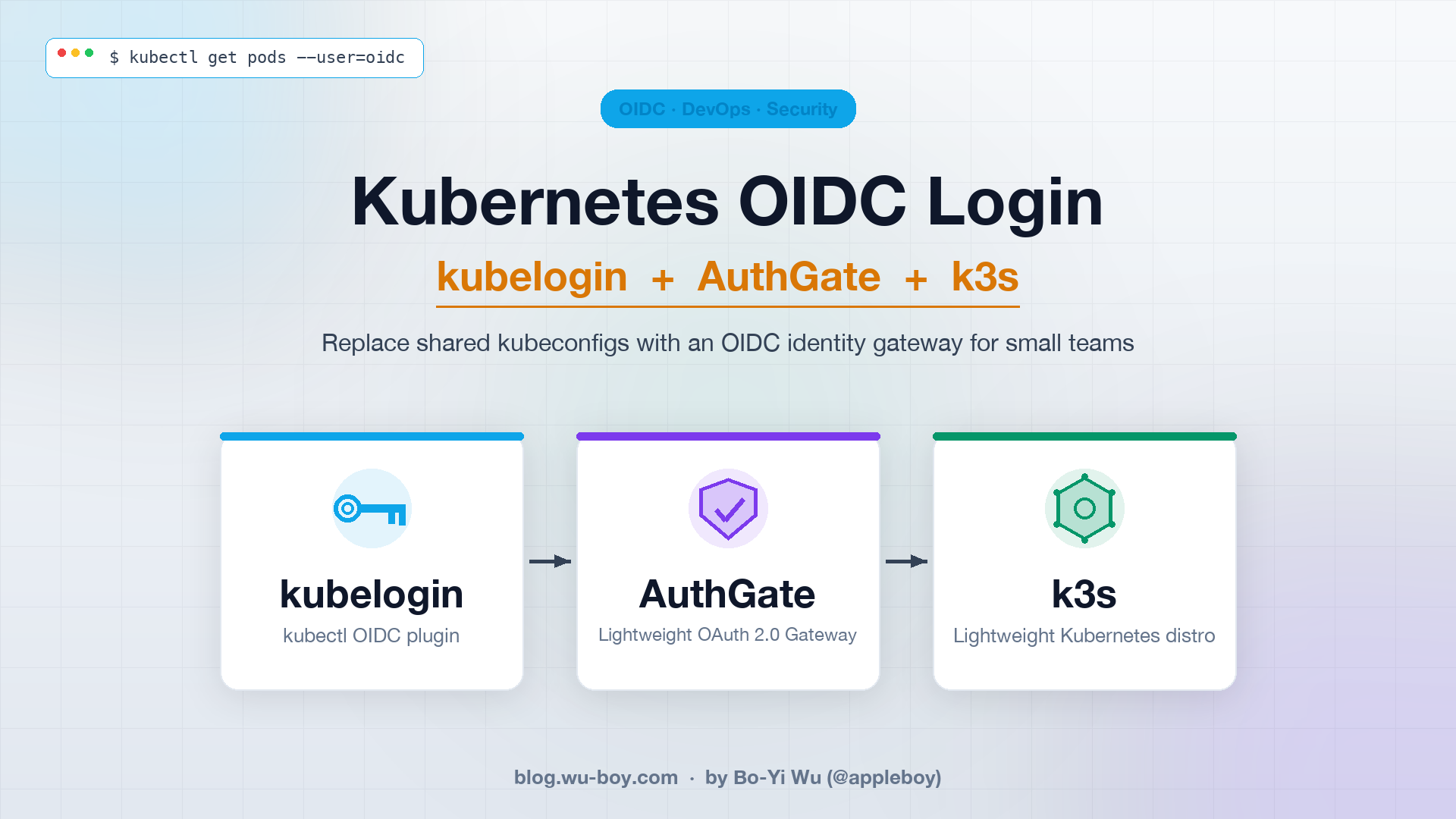
Most teams meet Kubernetes for the first time through a single “superuser” kubeconfig — a file with credentials that can wipe out the entire cluster. It then starts bouncing around Slack, email, and laptops, and nobody can say for sure who still has a copy, or whether the kubeconfig belonging to a former employee is still usable.
This post shows how to use kubelogin together with AuthGate to stand up an OIDC login flow on k3s: the moment a user runs kubectl get pods, the browser pops open AuthGate’s login page, the tokens land back in the kubeconfig, and the entire cluster no longer needs that shared admin.kubeconfig.
Why Small Teams Should Use kubelogin
OIDC login is usually pigeonholed as “something only big companies do”, but small teams have an even stronger case for adopting it, because they simply don’t have the bandwidth to track who is holding which credential. Here are the reasons I think small teams absolutely should use kubelogin:
- Former employees can’t walk away with a token: OIDC centralizes identity at the IdP (AuthGate in this case). Disable the account at the IdP and the user’s token becomes useless as soon as it expires (one hour by default). Compare that to a static kubeconfig: you have to rotate credentials manually, round up every active colleague to reissue theirs, and you can never be sure the person on the other end actually deleted the old copy.
- No more copy-pasting kubeconfigs: A new hire only needs a
kubeconfigtemplate (whichexecs into kubelogin). The firstkubectlcall triggers the OIDC flow — no admin pre-provisioning an account, creating aServiceAccount, or issuing a token. - Audit logs consolidate at the IdP: Who logged in, when, from which IP, from which laptop — it’s all recorded under AuthGate’s
/admin/audit. Handy when ISO 27001, SOC 2, or a PM asking “who touched production?” comes knocking. - Tokens auto-refresh; the UX feels like a static kubeconfig: kubelogin caches the refresh token in
~/.kube/cache/oidc-loginor the system keyring. As long as the refresh token is still valid, users never notice the rotation. - No extra bastion or VPN required just to manage identity: The OIDC flow rides the standard browser. You don’t have to stand up an in-cluster LDAP bridge or ship a
kubectlplugin that calls some internal API.
Put simply, kubelogin outsources “who is the user?” to the IdP, and kubectl only needs a near-static kubeconfig template.
Why Pick AuthGate as the IdP
You need an IdP to run OIDC. Keycloak is the first name that comes to mind, but for a small team Keycloak is a cloud-hosted “little monster”: it wants PostgreSQL, you have to tune JVM memory, and realm migrations during upgrades are easy to blow up. Dex is lighter but only handles federation — it has no user store of its own.
AuthGate is a new open-source project (MIT license, written in Go) that landed on GitHub in 2026 and fills the middle ground nicely. Since it only launched this year and features are still shipping quickly, community feedback directly shapes the roadmap — a great moment for teams looking for a lightweight IdP to get involved early:
- Single static binary + SQLite: No PostgreSQL, no JVM.
./authgate serverand you’re up. Swap in PostgreSQL later when you need horizontal scale. - Native support for OIDC Discovery and JWKS:
/.well-known/openid-configurationand/.well-known/jwks.jsonare all there. kube-apiserver can pull the public key and verify JWTs locally rather than calling back to the IdP every time. - Supports RS256 / ES256: RS256 is the safest choice for kube-apiserver (HS256 requires a shared secret, which is unsafe in multi-service deployments).
- Built-in session and authorization self-service pages: Users can see their own active tokens at
/account/sessionsand/account/authorizationsand revoke them without admin involvement. - Complete audit log: Logins, token issuance, token revocation, and admin actions are all captured and can be exported as CSV.
- Admins can force re-auth: If you suspect a client is compromised, one click forces every user to log in again.
For a small team, AuthGate’s biggest value is that “you don’t need a dedicated IdP admin”. Deploying it feels roughly on par with running Grafana or Prometheus, not Keycloak.
Architecture Overview
The whole flow involves four roles: the user’s kubectl, the kubelogin exec plugin, AuthGate (IdP), and k3s’s kube-apiserver.
    sequenceDiagram
    participant U as User (kubectl)
    participant K as kubelogin<br/>(oidc-login plugin)
    participant B as Browser
    participant A as AuthGate
    participant S as k3s<br/>(kube-apiserver)

    U->>K: 1. kubectl invokes exec plugin
    K->>B: 2. Open /oauth/authorize (PKCE)
    B->>A: 3. Log in + consent
    A-->>B: 4. 302 redirect + code
    B-->>K: 5. code returns to localhost:8000
    K->>A: 6. POST /oauth/token (code + verifier)
    A-->>K: 7. id_token + refresh_token
    K-->>U: 8. access_token back to kubectl
    U->>S: 9. API request (Bearer JWT)
    S->>A: 10. Fetch /.well-known/jwks.json<br/>(once at startup, then cached)
    A-->>S: public key
    Note over S: Local JWT signature + claims verification
    S-->>U: 11. 200 OK
Key design point: kube-apiserver only fetches the JWKS public key at startup (and on key rotation). After that, every token verification happens locally. AuthGate never becomes the hot path for kubectl — even if it goes down, only “new logins” are affected, not “already-authenticated sessions”.
Hands-On Walkthrough
The steps below assume you have a local machine that can run k3s, and that AuthGate is reachable from kube-apiserver over HTTPS. kube-apiserver strictly requires HTTPS for oidc-issuer-url, so we generate a local CA certificate with mkcert and mount it straight onto AuthGate’s built-in TLS server, skipping the extra reverse proxy. For k3s, macOS developers can use colima, Linux users can install native k3s — both are demonstrated.
Step 1: Generate TLS Certificates with mkcert
Install mkcert and register the local CA (-install adds mkcert’s root CA to the macOS Keychain / Linux trust store so that browsers and curl trust it out of the box):
| |
Next, bind authgate.local to the real IP (both the k3s host and the developer’s machine need this change, otherwise kube-apiserver inside k3s won’t be able to resolve the hostname):
| |
Step 2: Run AuthGate (Built-in HTTPS)
AuthGate ships with native TLS support, so you can attach the mkcert certificate directly — no Caddy / nginx required:
Edit .env and set the values below (these override the .env.example defaults rather than appending to them):
| |
BASE_URLmust match kube-apiserver’s--oidc-issuer-urlexactly — scheme, host, port, and trailing slash all have to line up character for character. In this post AuthGate runs on:8080, soBASE_URLishttps://authgate.local:8080. If you switch to:443(which requiressudoorsetcap 'cap_net_bind_service=+ep'), drop the port and writehttps://authgate.localinstead.
Start it up:
On the first boot, AuthGate writes the admin account to authgate-credentials.txt (permission 0600). Record the admin password inside, then delete the file.
Finally, verify the discovery endpoint is wired up correctly:
| |
You should see issuer, authorization_endpoint, token_endpoint, jwks_uri, and userinfo_endpoint. Copy the returned issuer value verbatim — k3s’s --oidc-issuer-url has to match it exactly.
Because mkcert -install already added the CA to your system trust store, you don’t need --cacert to verify TLS here. If issuer doesn’t line up with kube-apiserver’s --oidc-issuer-url (even a stray trailing slash will break it), logging in will keep throwing oidc: id token issued by a different provider — easily the most common landmine.
Step 3: Create the kubelogin OAuth Client in AuthGate
Log in at https://authgate.local:8080/admin with the admin credentials from earlier, navigate to Admin → OAuth Clients → Create New Client, and fill in:
| Field | Value |
|---|---|
| Name | kubelogin |
| Client Type | Public (kubelogin is a CLI and can’t keep secrets) |
| Grant Types | Authorization Code Flow (RFC 6749) |
| Redirect URIs | http://localhost:8000http://localhost:18000 |
| Scopes | openid email profile |
Why a public client + PKCE? Because kubelogin runs on the user’s machine and can’t safely protect a client_secret. The OAuth 2.1 idiom is to use PKCE (Proof Key for Code Exchange) in place of the secret, and kubelogin already sends a code_challenge by default.
Why register two redirect URIs? kubelogin picks a random local port for its callback listener, commonly 8000 or 18000 (you can pin it via --oidc-redirect-url-hostname / --listen-address). AuthGate requires an exact redirect URI match, so pre-register both so whichever port the user’s machine has free will just work — no need to come back and fix the client later.
Once created, note the client_id, for example b6c1a28f-bf94-4442-999d-5e1a51365180.
Step 4: Install kubelogin
Installation is straightforward on every platform:
Verify the install:
| |
Step 5: Verify the OIDC Flow with kubelogin setup (Before Touching k3s)
This step is especially important: it decouples “kubelogin ↔ AuthGate” from “k3s ↔ AuthGate” so you can debug each side independently. Before configuring OIDC on k3s, run kubelogin setup on its own:
--certificate-authority points at mkcert’s root CA (on macOS that’s ~/Library/Application Support/mkcert/rootCA.pem by default). Unlike browsers, kubelogin does not consult the system trust store, so you have to tell it explicitly.
After running this, the browser opens AuthGate’s login + consent page. Once you approve, the CLI prints the id_token’s claims. Check two things:
issis identical to the--oidc-issuer-urlyou passed in — case, port, and trailing slash must all match exactly. This is the value you’ll configure as kube-apiserver’s--oidc-issuer-urllater, so copy it down.- There is at least one claim that uniquely identifies the user — typically
suboremail— andaudequals yourclient_id.
If this step successfully prints claims, “AuthGate’s OIDC basics” and “kubelogin + mkcert CA” are both good. From here on, any k3s-side issue can be isolated to that layer, which shrinks the debug surface significantly. If this step fails (TLS errors, redirect URI mismatch, token exchange failures), go back and recheck Step 2 / Step 3 before touching k3s.
Step 6: Start k3s with OIDC Parameters
Option A: macOS with colima (recommended, no Linux VM switching needed)
colima spins up a lightweight Lima VM with k3s baked in — perfect for macOS developers. The cleanest approach is a YAML config file that declares both k3s arguments and mounts up front, so restarts don’t drift:
In the editor, set the k3sArgs and mounts sections to:
| |
A few highlights:
mountsmakes the macOS folder holding the mkcert certificates available inside the VM at/authgate-certs, sooidc-ca-filecan point straight at the VM path without any extracporscp.writable: falsekeeps the VM from touching the private key on the host.--disable=traefik: colima bundles traefik by default, which this tutorial doesn’t use and which grabs ports 80/443 — turn it off.oidc-client-idshould be replaced with the UUID of the client you created in AuthGate.oidc-username-prefix=authgate:makes Kubernetes see usernames likeauthgate:boyi@example.com— the prefix clearly marks “this person logged in via OIDC” and prevents name collisions with ServiceAccounts or other static users. Use-to disable the prefix entirely, as you prefer. The value contains a colon, so YAML requires double quotes.
Save and exit; colima restarts automatically with the new settings applied.
Next, add /etc/hosts inside the VM so kube-apiserver can resolve authgate.local to the host IP:
colima writes its kubeconfig to ~/.kube/config with context colima, so kubectl works out of the box after this.
Option B: Native k3s on Linux
First, put mkcert’s root CA somewhere k3s can read:
Then start k3s:
| |
k3s persists its config to /etc/systemd/system/k3s.service, so these flags survive restarts.
Flag Reference
oidc-username-claim=email: Use the JWT’semailclaim as the Kubernetes username.oidc-username-prefix=authgate:: Kubernetes sees the user asauthgate:boyi@example.com, which is easier to trace in audit logs and RBAC. Your--user=in RBAC bindings below has to include this prefix. If you’d rather use the raw email as the username, set--oidc-username-prefix=-.oidc-ca-file: Since mkcert issues a local CA, kube-apiserver doesn’t trust it by default and has to be told explicitly. Once you move to Let’s Encrypt in production, this flag can come out.- groups claim not used yet: AuthGate hasn’t shipped the
groupsclaim yet, so RBAC is bound per user (email). Once it ships, switch over tooidc-groups-claimfor a smooth migration.
Step 7: Set Up RBAC Bindings
A user authenticated via OIDC at kube-apiserver still needs an explicit ClusterRoleBinding — otherwise login succeeds but the user has no permissions:
| |
Onboarding future members is straightforward: after the admin creates the account in AuthGate, run one more kubectl create rolebinding/clusterrolebinding with the user’s email and the access is live. Once AuthGate supports the groups claim, you can switch to --group=<name> — bind once and only change group membership in AuthGate afterward.
Step 8: Distribute a kubeconfig to Users
Users get a kubeconfig template that looks like this (drop it into the internal wiki for copy-paste):
| |
If you’d rather not hand-craft the YAML, kubectl config set-credentials produces an equivalent user section:
| |
If AuthGate is fronted by a self-signed or local CA (such as the mkcert one from Step 1), add one more --exec-arg that points at the CA:
| |
This command only creates the user entry; the cluster and context are still bound via the usual kubectl config set-cluster / set-context.
A few details worth noting:
--token-cache-storage=keyring: Stashes the refresh token in the system keyring (macOS Keychain, GNOME Keyring, Windows Credential Manager), which is safer than the plaintext file under~/.kube/cache/oidc-login.- No
client_secret: The public client + PKCE design specifically does not need a secret. - This kubeconfig carries no user identity: It’s safe to paste into a GitHub wiki or README. Treat it as “connection settings”, not “credentials”.
Step 9: First Login
The first time a user runs any kubectl command, the browser automatically opens AuthGate’s login page. Because the previous step only added a new user entry via set-credentials oidc and didn’t rebind the current context to that user, you have to pass --user=oidc explicitly for the OIDC flow to actually kick in — otherwise colima / k3s’s default admin credentials take over:
If you’d rather skip the --user=oidc flag, rebind the existing context onto the oidc user so kubectl uses OIDC without any extra flags:
On the second and subsequent runs, kubelogin uses the refresh token already in the keyring to obtain a new access token, so users don’t feel any latency.
Advanced Tips
Using Device Code Flow for Headless Environments
A CI runner or a jump host reached over SSH has no browser. Add --grant-type=device-code to kubelogin and the flow becomes:
The user opens that URL on any machine with a browser, enters the code, and the local machine receives the token. AuthGate natively supports RFC 8628 Device Authorization Grant; no extra configuration needed.
Forcing Everyone to Re-authenticate
Suspect a developer’s laptop was lost, or want to yank the dev cluster back from someone:
- At AuthGate
/admin/clients/<client_id>/revoke-all, click “Force re-authentication” — every token issued to this client is invalidated instantly. - Or disable the account at
/admin/users/<user_id>/disable— every token that user holds across every client is revoked immediately, and they can’t log back in.
These actions are written to the audit log, so they’re traceable later.
Auditing: Who Touched Production, and When?
AuthGate’s /admin/audit has a full event stream: you can search by user, by event type, and export to CSV.
On kube-apiserver’s side, you can also enable the Kubernetes Audit Log:
The two logs join on email (the username kubelogin hands to k8s), giving you a complete “who logged in → who acted” trail.
Wrap-Up
The biggest obstacle to adopting OIDC at a small team isn’t the technology — it’s the psychological cost of “now we have to operate another IdP”. AuthGate shrinks that cost to roughly the level of running one more Gitea or Prometheus, and kubelogin itself is a pure client plugin that doesn’t change how anyone uses kubectl.
Looking back at what this architecture actually buys you:
- The shared kubeconfig is gone; credentials no longer drift through Slack.
- Offboarding is “disable the account in AuthGate”; k8s follows automatically.
- Onboarding doesn’t need admin intervention or credential rotation.
- Every login and every token issuance is audited.
A team of three to five can absolutely pull this off — it’s worth an afternoon.